Key takeaways
- To use MCP servers in VS Code, start with the authority each server receives.
- Check configuration scope, write operations, confirmation, command visibility, and recovery.
- A local server can execute commands with the MCP client's privileges.
Does VS Code support MCP servers?
Yes. VS Code supports MCP servers, and those servers can provide tools for file operations, databases, and external APIs. They can also provide resources, prompts, and interactive apps. That range is what makes MCP useful, but it also means that "connected" says very little about what a particular server can see or do.
Those capability types are not interchangeable. A tool can perform a task. A resource, prompt, or interactive app is a different thing exposed by the server. When a server description bundles them together, list the actual types that will enter VS Code. Then name the outside system behind each one. This keeps a broad protocol from turning into a vague grant of access.
The Model Context Protocol is an open standard for connecting AI models to tools, services, data sources, and shared context. In a coding environment, the server is the connection point between the model-facing workflow and an outside system. The practical question is therefore not just whether VS Code supports MCP. It is what the selected server exposes inside that support.
Visual Studio also supports adding MCP servers. Its documented capabilities include file access, repository management, and pull-request creation. Those Visual Studio instructions belong to Visual Studio, though, not VS Code. Keep the two products and their procedures distinct.
This is the first useful boundary: MCP support is broad, while each server presents a particular set of capabilities. Before configuration begins, name the system the coding task actually needs to reach.
The distinction also keeps product instructions clean. VS Code and Visual Studio both support MCP, but their documented capability examples and setup surfaces are not one shared procedure. Use the documentation for the editor in front of you.
Configuration lives in mcp.json
VS Code stores MCP server configuration in an mcp.json file. The editor provides IntelliSense for that file, so the configuration has an editor-aware surface instead of being an opaque text blob.
The location changes the configuration's reach. A workspace-scoped file lives at .vscode/mcp.json; the other documented location is the user profile. A workspace configuration belongs to that workspace, while a user-profile configuration is placed at the profile level. Decide which of those scopes should contain the server before adding credentials or commands.
That choice should be visible in review. For a workspace entry, inspect .vscode/mcp.json. For a profile entry, inspect the user-profile configuration. If teammates are discussing one server but looking at different scopes, they may not be discussing the same active declaration.
IntelliSense helps with the shape of the VS Code configuration. It does not answer the authority questions for you. The file can describe a server correctly while the identity behind it still has access to read or write operations in an outside system.
Configuration is only the declaration. It tells VS Code about the server, but the server's exposed operations, credentials, approval behavior, and recovery path still need their own review. That review starts with candidate discovery.
Match the server to the system it exposes
The best MCP server for coding is not the one with the longest tool list. It is the server whose exposed system matches the work and whose authority matches the acceptable consequence.
The GitHub MCP Registry provides a curated list of servers from partners and the community. It fills the discovery role many builders expect from a VS Code MCP server marketplace. A registry can supply candidates. The admission decision still depends on what a candidate connects to and what its tools can do.
A purpose-built server is one route. GitHub documents that such a server can connect Copilot Chat to a database or web service and expose tasks for that system. That is a concrete match when the coding job requires that database or service. It does not establish a reason to connect unrelated systems.
The GitHub MCP server offers a different task boundary. It enables interaction with repositories, issues, pull requests, and other GitHub features from Copilot Chat in an IDE. It is available regardless of GitHub plan, but each tool keeps the access and subscription requirements of the GitHub feature it represents. Server availability does not grant access to every underlying feature.
These examples make candidate selection concrete. Start with the system involved in the task, then inspect the individual operations that the server exposes for that system. A repository task, a database question, and an external API call are different work, even when all three appear through the same chat surface.
For a deeper application of this reasoning to one candidate family, our GitHub MCP server scorecard focuses on server selection rather than list size.
Which MCP server fits your coding task?
| Boundary | Question | Concrete example | Decision impact |
|---|---|---|---|
| Task fit | Does the task involve files, databases, or external APIs? | VS Code MCP servers can provide tools for those three kinds of work. | Keep the candidate tied to the system the task needs. |
| Exposed type | Does the server expose tools, resources, prompts, or interactive apps? | VS Code supports all four types through MCP servers. | Record the types that will enter the coding environment. |
| Configuration scope | Is the server configured for one workspace or the user profile? | mcp.json can live at .vscode/mcp.json or in the user profile. | Set the scope that matches where the server is meant to apply. |
| Credential authority | Which operations can the identity reach? | Azure clients can invoke operations permitted by the user's role; authorization restricts sensitive endpoints to permitted users. | Inspect the effective role and protected endpoints. |
| Mutation potential | Which tools read state, and which change it? | Azure DevOps distinguishes listing test plans from creating a plan or updating test-case steps. | Separate read-only operations from create and update operations. |
| Invocation approval | Is each tool call confirmed? | The documented Omni workflow requires confirmation for each invocation by default. | Locate the approval point before relying on it. |
| Command visibility | Can the user see commands that run locally? | An inadequately restricted or untrusted local server can leave commands hidden from the user. | Treat command visibility as a host control. |
| Recovery signal | Where do errors appear, and what can be restarted? | GitHub directs users to MCP output logs; restarting the server or IDE is supported troubleshooting. | Identify the observable error surface and restart path. |
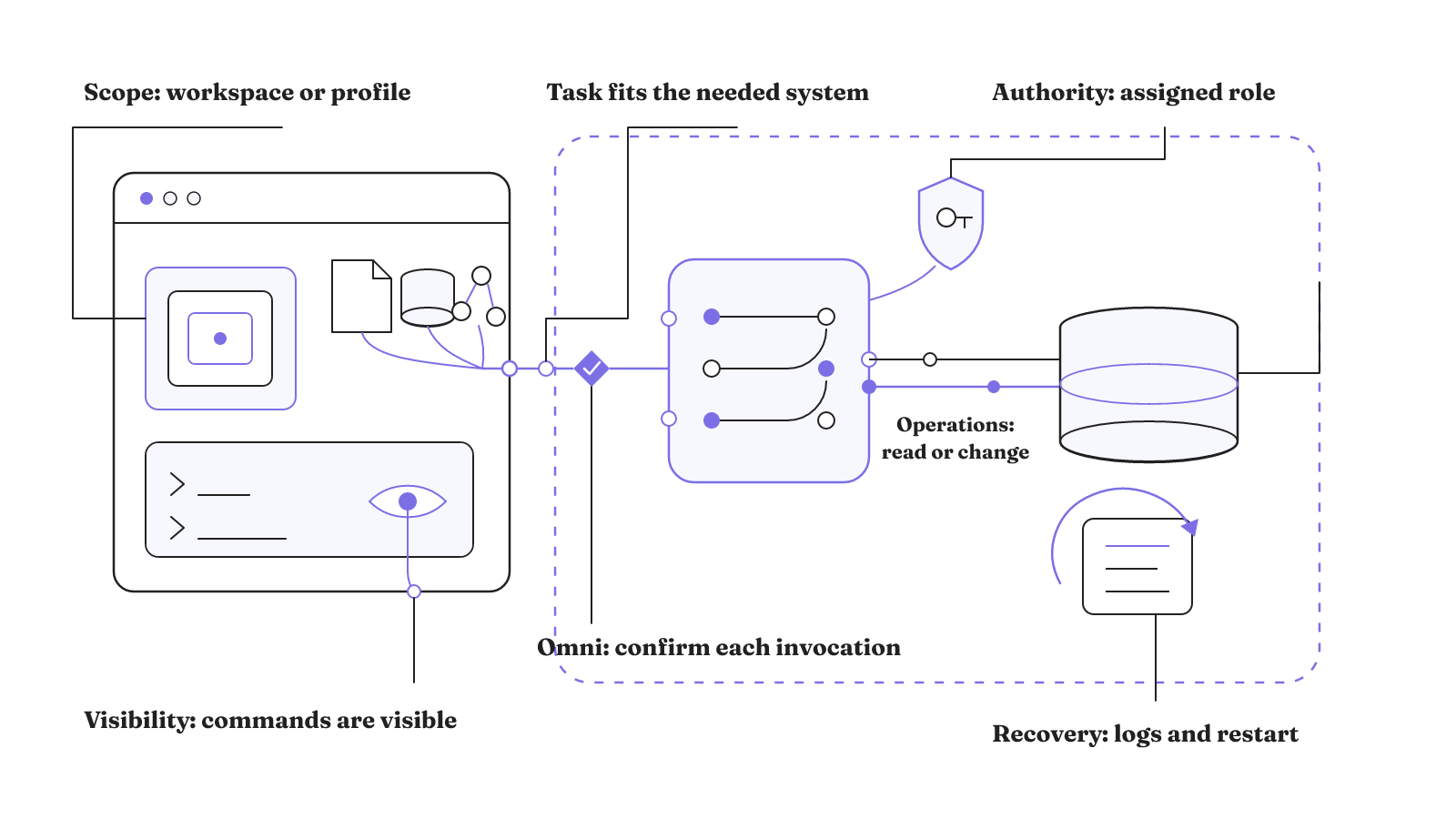
The best MCP server for VS Code is workload-specific. A useful capability is only one row. The other answers may come from mcp.json, the external identity, the client, and the product's output or restart controls. Write down the concrete answer from each layer for the candidate you are considering.
How does MCP work with Copilot in VS Code?
MCP extends GitHub Copilot by connecting it to other systems. GitHub documents support across four Copilot surfaces: IDE use, Copilot CLI, the Copilot app, and delegated agent tasks on GitHub.com. Those surfaces show where MCP-backed capabilities can appear. They do not make every product workflow interchangeable.
For a VS Code decision, the IDE surface is the relevant one. The other three show that Copilot's MCP support is not confined to the editor. Keep their instructions attached to their own surface. A delegated task on GitHub.com is not the same interaction as a tool invocation inside VS Code.
Inside VS Code, the exact interaction depends on the connected server. The documented Omni MCP workflow runs through the chat panel in Agent mode. Once connected, VS Code can use Omni for data questions, and the user can invoke it by name or description. That workflow requires the latest VS Code and access to Copilot for Agent mode.
Omni's workflow has a visible approval surface. By default, it requires confirmation for each tool invocation. Treat that confirmation behavior as part of the Omni workflow when comparing it with another server or client.
The sequence gives you four concrete items to inspect: the chat panel, Agent mode, the server named or described in the request, and confirmation for the invocation. The prerequisites are just as specific. The documented flow calls for the latest VS Code and access to Copilot.
So, how do you use MCP in VS Code Copilot? Connect a server that exposes the system needed by the task, then use the interaction surface documented for that server. For Omni, that surface is the VS Code chat panel in Agent mode. For the GitHub MCP server, the documented surface is Copilot Chat in an IDE for repositories, issues, pull requests, and other GitHub features.
The connection layer and the acting system are related but distinct. MCP supplies a standard connection to outside capabilities. The surrounding agent workflow determines how those capabilities enter a trajectory, including which identity is active and where an invocation requires approval. Our note on MCP versus agentic AI develops that distinction.
For the VS Code workflow you plan to run, inspect the active identity, available operations, and confirmation point together.
Azure authority reaches as far as the assigned role
Azure makes credential authority hard to ignore. The Azure MCP Server enables AI systems to perform operations that are aware of the user's Azure resources. An Azure MCP client can invoke operations permitted by the user's role-based access control permissions.
That mechanism sets a real execution boundary. The server is not merely describing resources to a model. An autonomous or misconfigured Azure MCP client may perform destructive actions. Microsoft's Azure MCP guidance therefore calls for least-privilege role-based access control and safeguards.
Least privilege should be read literally here: the assigned Azure role determines which operations are permitted. The relevant review is the authority available to the identity that the MCP client uses. A broad role creates a broad set of permitted operations. A narrower role creates a narrower set.
Start with the role, not the prompt. A cautious prompt does not change which Azure operations the role permits. Record the identity used by the client and the role-based permissions attached to it. Then compare those permissions with the resource-aware operations the server exposes.
The Azure DevOps example makes mutation potential visible at the tool level. Its remote MCP server distinguishes read-only operations, such as listing test plans, from mutating operations, such as creating a plan or updating test-case steps. Those operation types should not be collapsed into a single label such as "test-plan access."
Client safeguards also need a precise reading. Flags intended to prevent destructive operations are not standardized by MCP and may not be supported by every client. A flag described by one server cannot be treated as a universal control across MCP clients.
That makes client support part of the boundary. If a deployment depends on a destructive-operation flag, confirm that the selected client supports it. Keep least-privilege role assignment and other safeguards in place because the flag itself is not an MCP-wide guarantee.
The durable admission rule is simple. Read the effective control boundary as the user's assigned authority plus the safeguards that the selected client actually implements. Resource awareness is useful, but the same connection can reach operations with material consequences when the role permits them.
Local servers run at the host boundary
A local MCP server brings the execution path onto the host machine. If the server has inadequate restrictions or an untrusted origin, attackers can execute commands with the MCP client's privileges. The user may also lack visibility into those commands.
The consequence is not limited to an obviously malicious server. Attackers or bugs in legitimate local MCP servers can cause irrecoverable data loss on the host. Trusted origin matters, but it does not remove the risk of a bug in local execution.
There are two separate questions to answer. Can the server execute commands with the client's privileges? Can the user see those commands? A local server with broad execution and poor visibility combines host authority with an opaque trajectory.
This changes the selection question. For a local server, inspect the client privileges and command visibility as part of the capability itself. File access and command execution are not just convenient tool descriptions when they operate at the host boundary. They define what can be affected and what the user can observe while it happens.
Why can an MCP connection fail before tools appear?
A connection can fail before tool invocation because several different parts must line up. Three documented examples locate the failure in the runtime, the remote session, or extension registration.
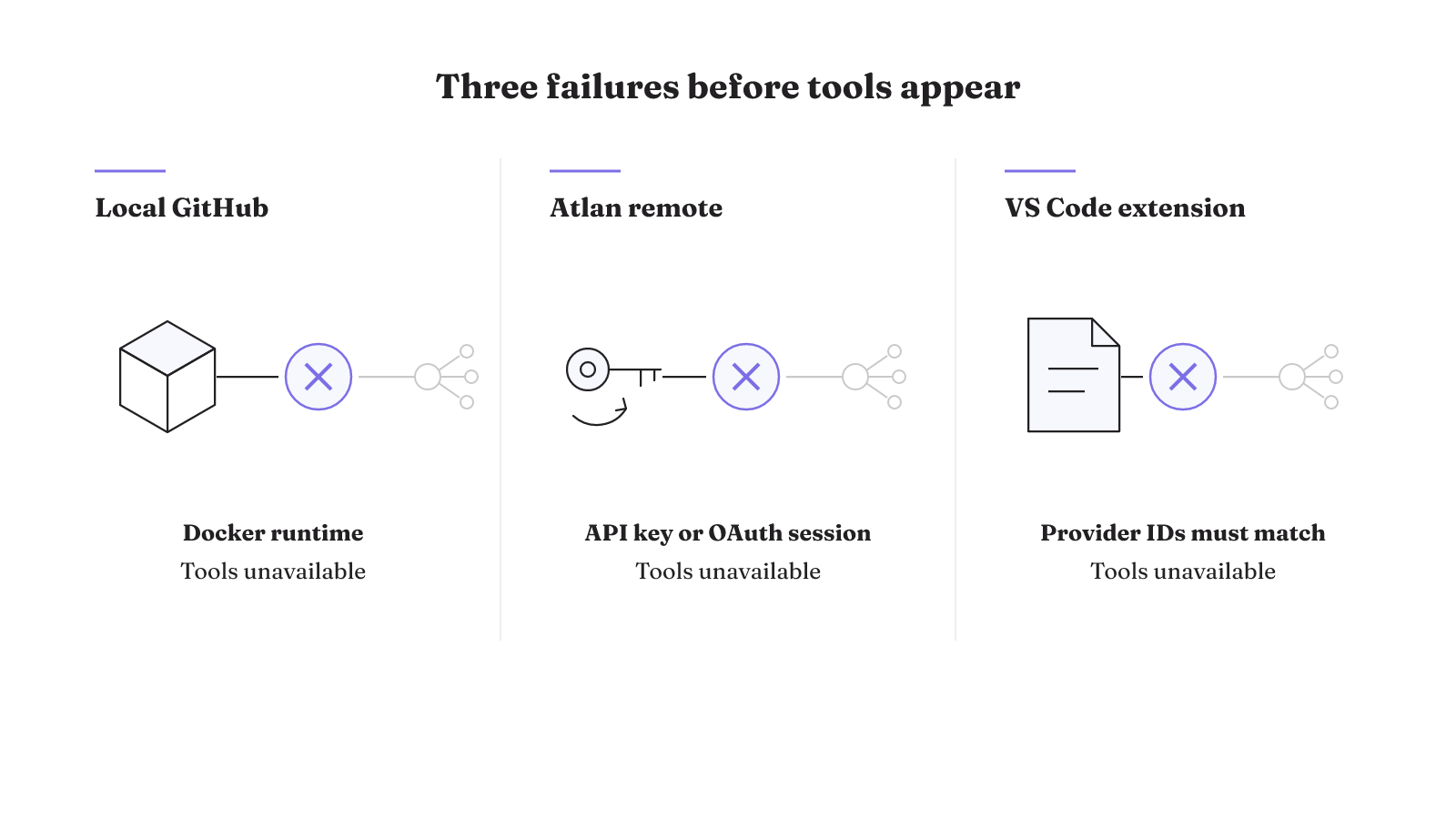
First, running the GitHub MCP server locally requires an environment configured to run Docker containers. If that runtime is not correctly configured, the local server has a dependency problem before a repository tool can do any work. For GitHub MCP troubleshooting, the supported checks include inspecting the MCP server output logs for errors and restarting the server or the IDE.
Second, Atlan documents remote VS Code connection failures tied to API-key validity, OAuth session state, or extension registration. Those are three distinct conditions within that product's remote connection path. A server can therefore fail to appear for a credential, session, or registration reason before its tools are relevant.
Third, an extension that registers MCP servers in VS Code must declare contributes.mcpServerDefinitionProviders in package.json. The provider ID must match the implementation ID. The VS Code extension guide places that requirement at the registration boundary. A mismatch there is not a server permission problem or a tool failure.
These examples give failure investigation a useful order without pretending to be a universal runbook. Locate the boundary first: local runtime, remote credential or session, extension registration, server output, or IDE process. Then use the recovery step documented for that product and failure point.
Before bringing another server into the editor, compare its connection layer with the authority and control points of the agent using it. Our MCP and agentic AI comparison provides that lens. Use it to mark the identity, write boundary, approval point, visible failure signal, and recovery path for the workload you are about to run.