Key takeaways
- "Blender MCP" resolves to two different servers: Blender's own Lab server, and the community project at ahujasid/blender-mcp, which sits at 24.5k stars and 160 commits as of 14 July 2026.
- Blender's own server requires Blender 5.1 or newer, and Blender ships no built-in LLM connectivity at all.
- Blender publishes the part the tutorials drop: the server executes LLM-generated code with no guards in place to protect your data from removal or from being sent to a remote location. A virtual machine is the recommended precaution.
- Pick the server first. Contain the session second. Prompt third.
Four bullets cannot carry the routing decision. Which server suits you turns on your Blender version, your client, and what is open on the machine, so the table below is the part worth keeping.
Blender MCP is two different servers with the same name
Search the term and you get two results that look like the same product. They are not.
The first is Blender's own Lab MCP server, which the project describes as a lightweight server offering a natural-language interface to Blender's Python API, meant to improve access to documentation and help you explore and understand complex setups. The framing there is comprehension and API access, not "type a prompt, get a spaceship."
The second is ahujasid/blender-mcp on GitHub, the community project. It sits at 24.5k stars, 2.4k forks and 160 commits as of 14 July 2026, with source changes landing in June 2026 and a README update on 14 July 2026. Those dates are the useful part: this is a project someone still touches, not a repo frozen at its launch week. Its stated job is narrower and blunter than the official server's: connect Blender to Claude over the Model Context Protocol so the model can interact with and control Blender directly, drivable from MCP-aware clients including Cursor, VS Code and Claude Desktop.
So the blender mcp github result and the blender.org result are alternatives, not chapters of one story. Each documents its own path and expects you to be on it.
One limit worth stating before you choose. These two describe different jobs, and this page routes you to one of them rather than to both. If what you want is comprehension and API exploration, the official server states that as its purpose: a natural-language interface to Blender's Python API, better documentation access, a way to understand a complex setup. If what you want is a model driving your scene, that is the community project's stated purpose, in its own words. Match the job to the purpose each project publishes, install that one, and leave the other alone until you have a reason not to.
Both paths put a blender mcp addon inside Blender itself. Only the official one publishes its add-on steps in full, which is why the install section below walks that path and sends you to the repository README for the other.
Pick your server before you install anything
Here is the whole decision on one screen.
| Blender Lab MCP server (official) | ahujasid/blender-mcp (community) | |
|---|---|---|
| Blender version floor | 5.1 or newer | Take the requirement from the repository README before you install |
| Install path | Blender ships no built-in LLM connectivity, so three external tools get downloaded, installed and run by hand | Take the install steps from the repository README rather than from this page |
| Stated purpose | Natural-language interface to Blender's Python API, documentation access, understanding complex setups | Connects Blender to Claude over MCP so the model can interact with and control Blender directly |
| Client config key | "mcp" wrapper in VS Code, "mcpServers" in Claude Desktop and Cursor | The wrapper key belongs to your client, not to the server, so the same split decides this one too |
| Published security warning | Executes LLM-generated code with no guards on your data; a virtual machine or a system without access to sensitive information is recommended | Read the project's own README before your first prompt rather than assuming the official warning covers it |
| Maintenance signal | First-party Blender Lab project, installed from the Blender Lab repository by hand | 24.5k stars, 2.4k forks, 160 commits, source changes June 2026, README updated 14 July 2026 |
Two columns are missing on purpose: install wall-clock time and output quality. No controlled run of both implementations on one machine sits behind this page, so those cells would be impressions dressed as data. They stay empty until someone does the run, and until then the table cannot tell you which one is faster to stand up or which one draws better. Three of the community cells route you to the README for the same reason: that project's requirements and steps are not published at the depth the official page publishes its own.
The routing rule most readers need: if you are on Blender 5.1 or newer and you want the path whose install steps and security posture the vendor publishes in full, take the official server. If you specifically want the Claude-driven scene-control workflow the community project was built for, take the GitHub repo and accept that you are reading its README rather than a vendor manual.
What this bridge can reach once it is running
This is the part the install videos skip, and it is the part that should decide whether you install today at all.
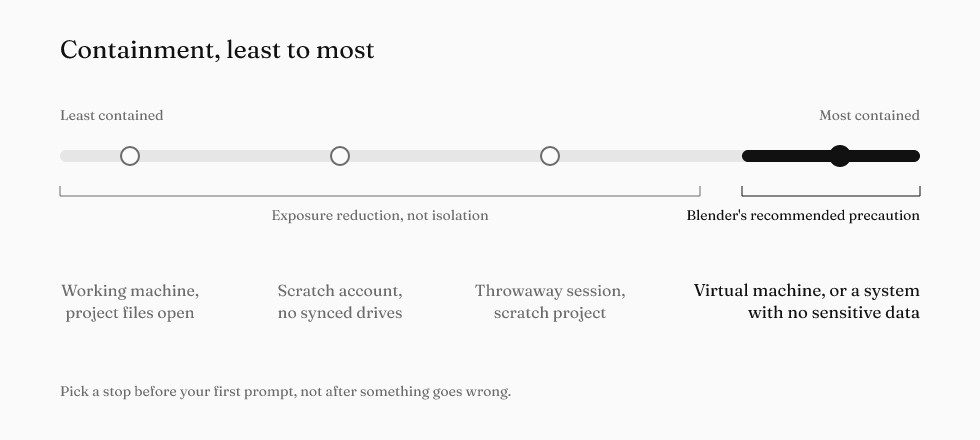
Blender states it directly: the MCP server executes LLM-generated code in Blender with no guards in place to protect your data from removal or from being sent to a remote location. The recommended precaution is a virtual machine, or a system with no access to sensitive information.
That is not "the model might make a bad mesh." It is generated code running with your Blender process's reach, and the vendor's own advice is to give it a machine that has nothing worth losing.
Short of a full VM, you can reduce exposure. A throwaway session with only a scratch project open. A user account without your client folders mounted. No cloud drive syncing the directory you point it at. Every one of those narrows the blast radius, and not one of them is isolation. The only containment with a published recommendation behind it is the virtual machine or the machine without sensitive data. Nothing published names a lighter setup as verified safe, so the rest of that list is reasoning rather than a proven configuration, and treating it as equivalent to the real thing is the mistake. Treat it as harm reduction while you decide whether the real thing is worth standing up.
If you would not paste an unreviewed script from a forum into the Blender Python console with your working file open, you already know how to feel about this.
Installing the add-on and starting the server
The official blender mcp install is deliberately manual, and the manual shape tells you something.
Blender has no built-in functionality for connecting to LLMs. Three external tools must be downloaded, installed and run by hand before anything talks to anything. The floor is Blender 5.1 or newer. There is no one-click path.
One step trips people who expect a normal add-on install. If you drag and drop into Blender, you do it twice: first to add the Blender Lab repository, and again to install the add-on. The first drop feels like it did nothing. It did not do nothing. It registered the source you are about to install from.
Where this page stops: it walks the official path in full and goes no further, because the community project's add-on procedure is not published at the same depth. For that server, take the exact steps from its repository README rather than assuming this sequence transfers. The two blender mcp server projects are close cousins, not the same install, and guessing the second one from the first is how people end up with an add-on registered against nothing.
The config key your client actually reads
Here is the failure that has nothing to do with Blender.
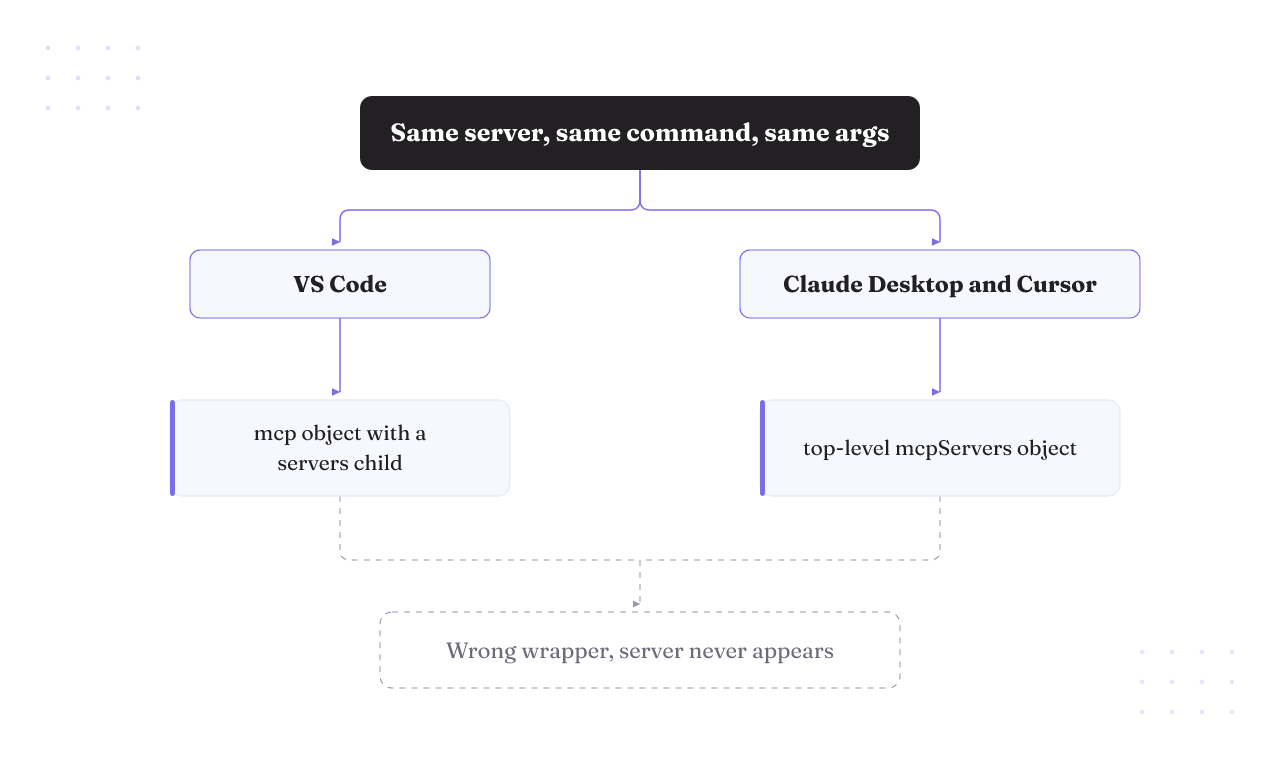
MCP setup across Claude, ChatGPT, VS Code and Cursor is one shared config format applied per client, not a different integration per tool. The syntax still differs between Claude Desktop, Cursor and VS Code, so when a server never appears in your tool list, check the wrapper key before you go looking at the server binary.
The split is exact. VS Code nests servers inside an "mcp" object with a "servers" child:
{ "mcp": { "servers": { } } }
Claude Desktop and Cursor use a top-level "mcpServers" object:
{ "mcpServers": { } }
Same server, same command, same args, two different shapes wrapped around them. That is the first thing to check on a blender mcp cursor or a blender mcp vscode setup that never shows up, and it is why a claude blender mcp config lifted from a VS Code tutorial is worth re-reading key by key before you debug anything downstream of it.
The rule generalises, because the key belongs to the client rather than to Blender. The same holds for a blender mcp antigravity setup: check which wrapper key that client's own documentation specifies, then take the command and args from your chosen Blender project's README. Here is the limit on that advice. No verified Blender-specific config block for Cursor, VS Code or Antigravity is published anywhere this page would stand behind, so what you get here is the wrapper shape and nothing more. A config block nobody has verified is worse than no block at all.
If you are wiring several servers at once, our guide to GitHub MCP servers covers the same wrapper problem across a wider set, and Antigravity versus Cursor covers where those two clients diverge.
When the logs say connected and nothing works
The failure mode nobody films: everything reports green and the client sits there.
An issue filed in March 2025 against the community project, from a mac running Claude Desktop, carries exactly the log you would want to see. The add-on registered. The server started on localhost:9876. A client connection logged from 127.0.0.1. The log line read "Successfully connected to Blender on startup."
That report dates to March 2025, so treat it as a failure pattern to rule out rather than current guidance about a specific bug. Three checks are worth running, and each one has something concrete behind it:
- Check the wrapper key first. The required shape differs by client, so compare your file against the format your own client documents before you touch anything else.
- Confirm Blender is running with a UI rather than in the background. Background mode is a real enough failure path that the community project landed a fail-fast change for it in June 2026.
- Read the port in your own log. The reported case shows the server on localhost:9876; check that the port your log names is the port your client is actually pointed at.
Green logs mean the server started and something connected. They do not mean your client can call a tool. Those are two different claims, and only the second one matters.
How to know it worked, and where the output stops
A working setup is easy to verify: open your client's tool list and confirm the Blender tools are there, then ask for something trivially checkable, like a single primitive at a named location, and look at the viewport. If the object appears, the bridge is real.
Then the harder part starts.
Practitioners who get the bridge working report a ceiling: the setup works, the concept impresses, and results beyond a simple scene are hard to get. That is what people describe, not a benchmark anyone ran, so read it as where users say they stop rather than a measured line. Connecting is the easy half.
The reason is worth naming, because it explains why this category exists at all. Blender's power has always been gated behind an interface that takes real time to learn, and natural-language control promises to remove that gate. It genuinely removes part of it. What it does not remove is the need to know what you are asking for. A model that can call Blender's API still needs a request precise enough to be correct, and "make it look better" is not that. The learning curve moves. It does not vanish.
So set your expectation before you install: this is a competent assistant for scripted operations, scene inspection and API exploration. It is not a text-to-finished-asset pipeline, and no configuration turns it into one.
Where this fits if you are building the harness, not just the demo
Everything above turns on one published sentence. The server executes LLM-generated code inside Blender with no guards protecting your data from removal or from being sent to a remote location, and the vendor's own answer to that is a virtual machine. That is not a setup detail you tune later. It is a control problem wearing a setup-tutorial costume.
If you are rendering hobby scenes on a scratch machine, you do not need any of what follows. Install it, keep nothing precious on the box, enjoy it.
If you are wiring agent tooling into work you cannot afford to lose, the containment question is the real one, and it does not stop at Blender. That is the problem Rifty works on: control as a first-class feature, legible and steerable and reversible at every step, with nothing irreversible shipping without your sign-off. Rifty operates by introduction, so this is not a self-serve fix you can install this afternoon.
Next: the deeper Blender MCP with Claude breakdown for client-specific setup and the bounded-harness pattern, or how we think about building agentic systems if the containment question is the one you came for.